I have been reading all of the stuff I can on Gaia…However, I have a question or two if anyone uses it regularly. *I left my phone in Airplane mode with Gaia open last night and experienced no battery drain. *Today I dropped my Subaru off for new tires and walked .65 miles to work and used the tracking feature in airplane mode and lost 6% battery *I have a route already loaded onto Gaia for a quick over night trip next week. When using this app with my iPhone 5 should I only open it briefly to check my progress per the route? When doing this will I be able to tell if I have walked 3 miles of the 5 miles to the next check point? etc…One thing I personally miss about hiking with a Garmin GPS is being able to glance down and confirm how many miles I have walked and work out how much further I have to go, etc…Is this possible with Gaia not using the tracking function? If it is, what type of battery drain could one expect assuming you check ever hour or so for a 15 mile trek? Plus standard pics, reading kindle at night and alarm clock. I realize any info would be subjective but I am really just looking for a general idea of what to expect.
Topic
Gaia GPS???Iphone 5
Become a member to post in the forums.
- This topic is empty.
I found I was able to get 4+ days on my iPhone 6 on the JMT this summer in airplane mode. This includes a couple dozen photos each day, probably 10-20 checks of Guthook's JMT app and/or Gaia each day. It's a different phone and different apps but my impression is that you can get a lot of life out of an iPhone in airplane mode if it's not pinging the GPS satellites constantly.
On a recent 8-hr hike with my iPhone 4S in airplane mode, with bluetooth on, and tracking via Gaia, checking pretty frequently, I had 57% battery left at the end. I also used the phone to send/receive texts via my InReach. One variable is how fresh your iPhone battery is. An aging battery is going to drain faster. The above trip was with a recently replaced battery.
I use my iPhone for photos and occasional position spot-checks with MilGPS (which I like because it can just display your UTM grid in large type) and I can go a week without a recharge, but I've used Gaia also. One of my usual hiking partners is the group techie and he uses Gaia to track our routes continuously up to three days without a recharge. I don't know if you've found this in your research, but you have to do more than just put it in airplane mode. Amy's instructions are the best I've found: http://www.adventurealan.com/iphone4gps.htm I used to be a real Luddite about taking my phone on a hike, but now that the damned thing combines my camera, emergency GPS, and music (and, of course, a phone when it works) I have become a convert.
I've used this app with the iPhone 4, 5, and 6. If I turn off airplane mode just long enough to check my position five times per day, I can easily get five days off of a single charge. If you want to track your movement with it, I'd have a plan to recharge your phone every day.
Ian, you can leave it in Airplane mode with the most recent iOS update. If you enable No GPS Until Activated in Gaia's settings it won't turn on the GPS unless tracking or you hit the locate button.
Thanks Matthew! That's a great feature I was previously unaware of.
if you use tracking (not simply checking your location) it will eat batteries pretty quickly; Gaia is talking about a new feature that would let you choose the sampling rate- a lower sampling rate would reduce power consumption, might be out by late fall???? putting it in airplane mode and turning Gaia to only on when needed (and not tracking) will usually provide multi-day battery length- my last three day outing with about 30-40 pictures, checking the map every other hour or so and checking my location roughly a dozen times and turning the phone off at night, left me with over 50% battery left (iphone 6)
It's the same issue with any GPS when using continous tracking. You can turn off the screen with the app running to save a little power. Using the app occasionally in airplane mode for a location fix or identifying peaks and other features won't take as much power. Another approach to using your iPhone is to use the compass app. Your GPS coordinates appear at the bottom of the screen and you can reference those to your paper maps—- which of course you carry EVERY time you go out, right? :) Gaia is a bargain and highly recommended if your are carrying your phone anyway. It will provide the features of an expensive dedicated GPS for $20. To give a frame of reference, the better Garmin units are rated at 16 hours per charge. I can equal that with my iPhone and an accessory power bank battery. Mike's note about the possible changes in tracking options is very interesting. Can't wait!
Took it out for a quick over night trip and had two issues…1) the screen wasn't in focus when I accessed the map and the arrow that sows my personal location. 2) I had entered the route prior to leaving but couldn't see it on the map like I could when I was at home. Any thoughts?
Most likely you downloaded the base map at a resolution that makes it appear unfocussed when you zoom in. Once you nail this skill, the resolution and origin of maps on the iPhone are a nice complement to the printed stuff you should also carry. Unfortunately the Gaia documentation is less than great, so mastering all that this program has to offer is a struggle.
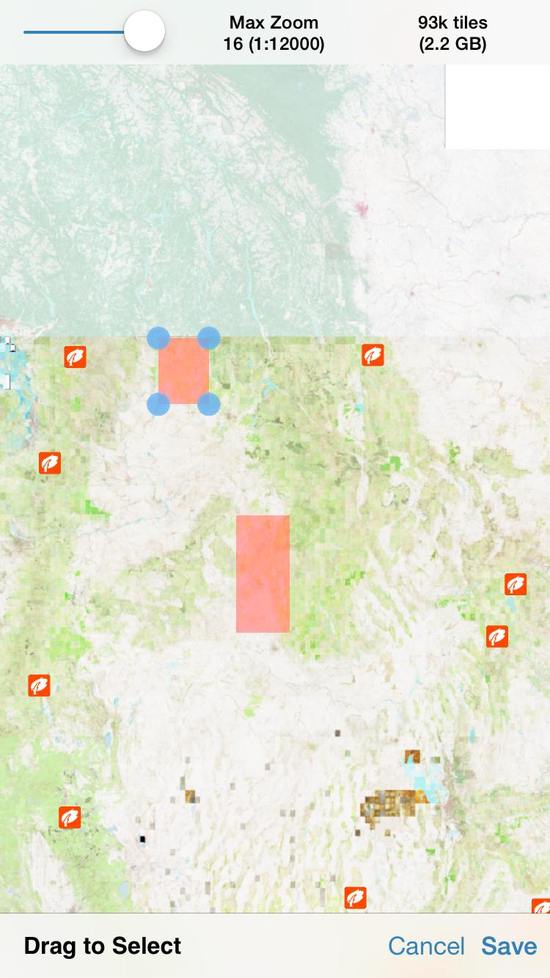
When you click on the layers icon on the main screen, and then select the downloads map option, you'll get a similar screen: .
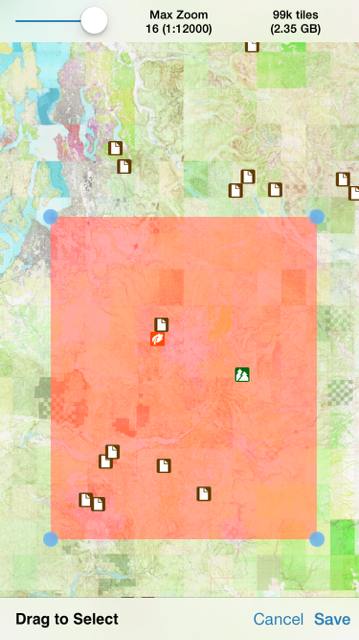
For any individual map, you're limited to 100,000 "tiles." There's a negative relationship between the size of the individual tile and the resolution you choose to work with. As an example, I can download a map that covers all of Mt. Rainier National Park and much more at the highest resolution 1:2000 that's 99,000 tiles and 2.35 GB in size. .
I use Caltopo.com and appreciate that they use the same topo maps.
I appreciate the insight. I agree the online info hasn't been easy to understand. So if I make a route then download it into my map. I can then find myself on the downloaded map when afield? I.E. check where I am at on the route.
the map has to be downloaded (and named) first (at home or where you have access to WiFi or really good cell coverage), then load this particular map as you head afield all (all) my maps I load at 1:24,000- I get very precise detail (same as a quad map) and always crisp images if I scroll off of the map I've downloaded in the field, the image becomes fuzzy if you run out of space on your phone you can store them on the "cloud" and pull them back in anytime you want
Yes download when you have wifi. You can scroll in and out when you're in the field but I go with a high level of detail. I normally don't load tracks into any GPS. If much of the trail will be under snow, then I might load some waypoints out of convenience beforehand. 99% of my navigation is done with the map as I prefer terrain association. The other 1% is split between my compass and GPS. The compass is used to orient my map an a few other things. The GPS is mostly used to confirm my position on the map (eg unmarked trail junctions). I print my maps and set Gaia for UTM grid coordinates but that's just my preference.
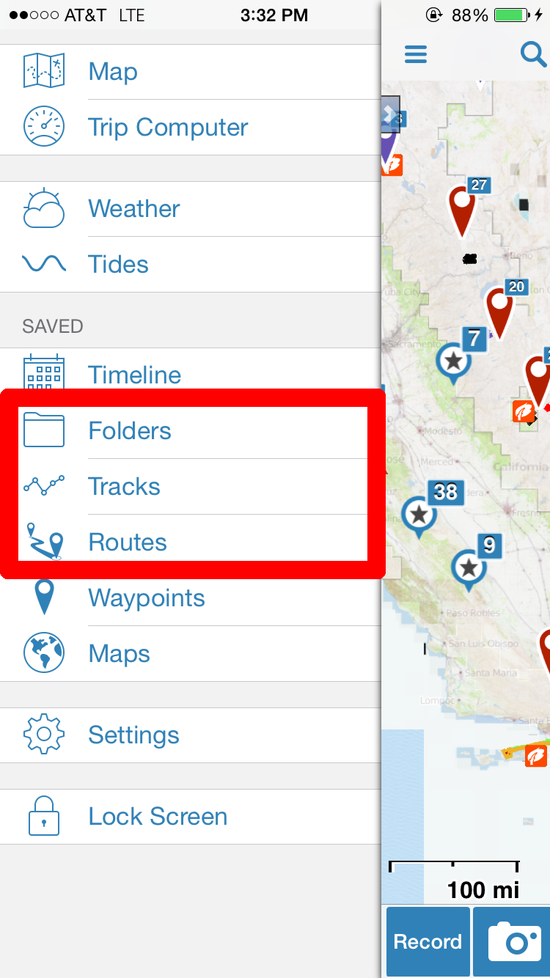
Ryan, if you've uploaded a Track or a Route to Gaia, there's a super convenient method to download maps for it. By using the following technique, Gaia will automatically download the map tiles adjacent to the route, rather than you having to go in and manually select a big square area to download. First, bring up the menu on the left:
Navigate into Track/Route/Folder and select the one you want. Then you'll see an option for the route that lets you download the map for that route:
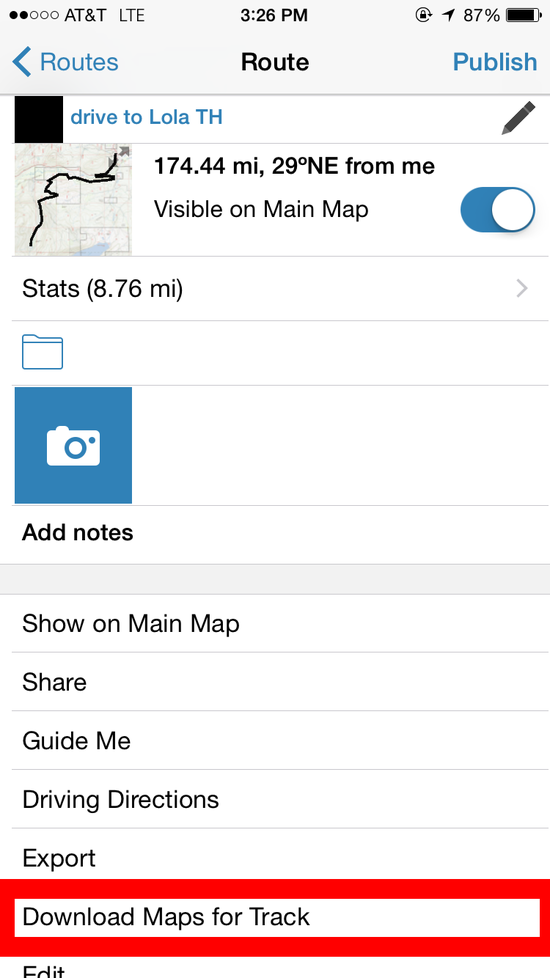
By the way, you'll see the same "Download Maps for Track" option regardless of whether it's a Track, a Route, or a Track within a Folder. (If it's a Track within a Folder, you just have to navigate down to the track within the folder to find the option.) It downloads whichever map layer(s) is being currently displayed on the map.


Become a member to post in the forums.