

GPX Import
Bring in a route GPX file and turn its geometry into a workable plan.

TRIPS uses terrain geometry, physiology, and itinerary planning to model energy demand, travel time, and fatigue-risk signaling so you can plan with more clarity and confidence.
Planning Modes
Calibration • Modeling • Comparison • Research • Analysis • Scenario Planning
TRIPS is designed to scale with the way you plan. Use Basic mode for faster early-stage planning and lighter workflows, then move into Pro mode when you want the full diagnostic and modeling workspace. Both modes are available to all users.
Enterprise licensing, self-hosted, and customer-managed deployments are available for regulated and isolated networks.
What You Can Do
Bring in a route GPX file and turn its geometry into a workable plan.
Position camps, split the route into days, adjust resupply logistics,* and build a better itinerary.
Review route and daily diagnostics, outcomes, and performance metrics.
See how terrain,* pacing, altitude, food, sleep, and pack weight change the plan.
Save unlimited plans and versions as you refine and compare your options.
Use optional wearable-history calibration when you want to tune the models more deeply.
Inside The Planner
TRIPS brings the map, day structure, and diagnostics into one workspace so you can spot hard sections, rebalance days, and understand the plan faster.
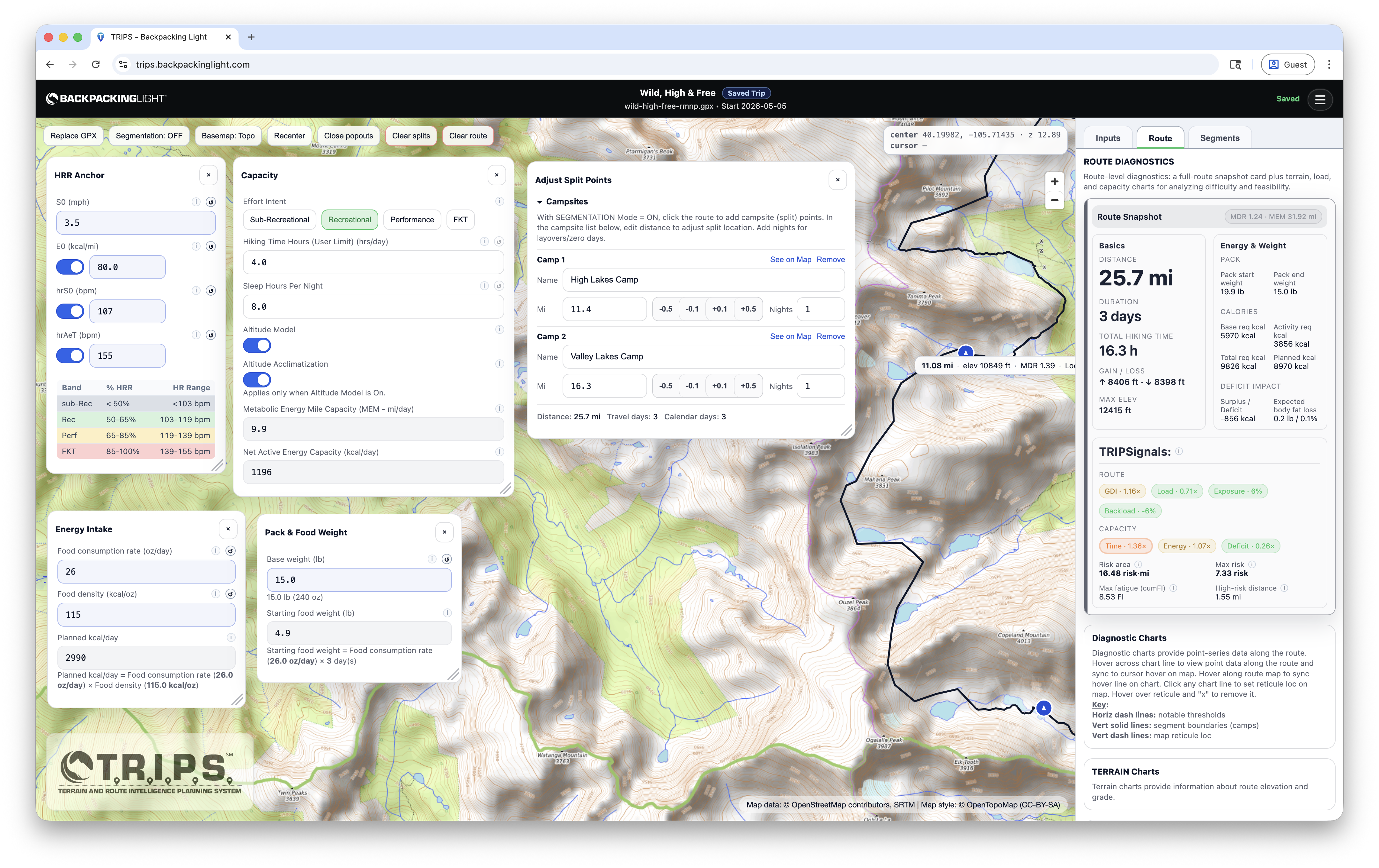
Why Plans Break
Totals alone do not reveal overloaded days, weak campsite placement, compounding fatigue, or how load and altitude change the trip. These are the failure modes TRIPS helps you spot before you are in the field.
A route can look reasonable overall and still hide one day that is too long, too steep, or too backloaded to work.
The steepest section is not always the section that breaks the plan. Fatigue, late effort, and underfueling can matter just as much.
Mileage and elevation totals can make a plan look cleaner than it is while fatigue, backloading, and weak campsites stay hidden.
A strong route can still produce a weak itinerary if campsites land too early, too late, or on the wrong side of the hardest terrain.
Pack weight and food carry change across the trip, and those shifts can make later days feel very different from day one.
A day that looks manageable on paper can feel much harder once altitude, effort, and recovery start stacking up.
How It Works
Import the route, break it into days, inspect where it gets hard, and compare alternatives before you commit.
01
Load the route you want to evaluate and start from real geometry.
02
Place campsites or split points so the route becomes a real itinerary.
03
See where terrain, time, energy, and fatigue pressure concentrate across the route and within each day.
04
Test conservative and aggressive versions before you commit too early.
What Makes TRIPS Different
It combines route analysis, planning assumptions, and optional user modeling to analyze time, energy, fatigue, risk, and energy balance.
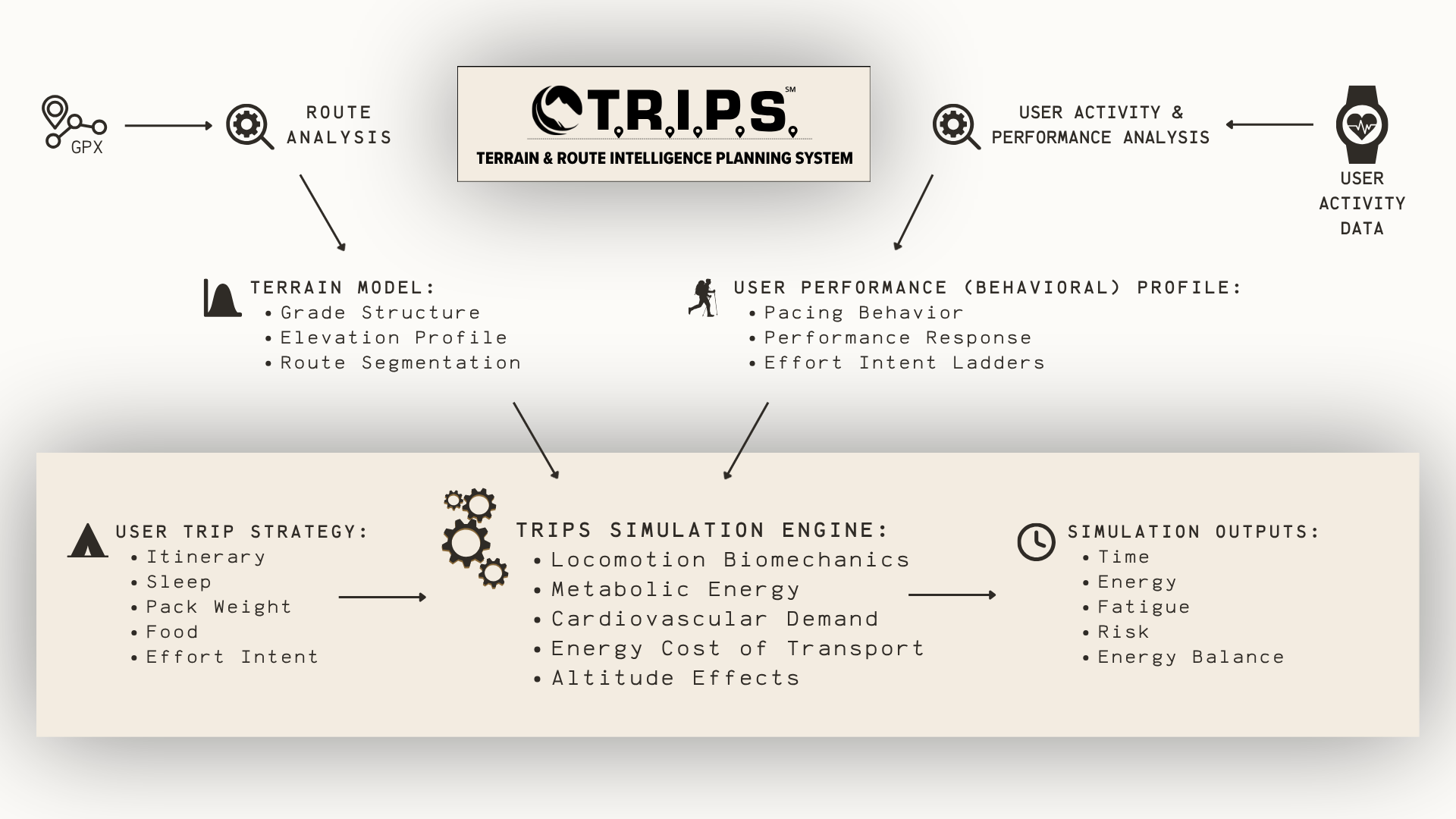
TRIPS starts with GPX route geometry, terrain structure, elevation profile, and route segmentation.
It combines itinerary structure, sleep, pack weight, food, and effort assumptions into the planning model.
Basic mode works without wearable history. Representative activity data is only needed when you want deeper personalization around pacing behavior and performance response.
The planner helps you inspect time, energy, fatigue, risk, and energy balance across the trip.
What TRIPS Helps You Decide
TRIPS helps you decide where to move camps, how many days the route wants, whether the pace is realistic, and what kind of terrain, load, or altitude pressure the itinerary is creating.
Use route-level diagnostics to understand whether the trip is in the right ballpark before you get attached to the plan.
Identify the outlier day and understand whether the problem is terrain, time, load, altitude, or accumulated fatigue.
See how shifting campsites or split points changes the difficulty profile of the whole itinerary.
Pack weight, food, sleep, altitude, and pacing assumptions all shape the trip. TRIPS helps you compare them honestly.
Compare route length, campsite layout, and pacing aggressiveness to make more educated decisions.
Start in Basic mode with honest manual inputs, then switch to Pro mode and optional calibration only if you want deeper personalization later.
What The Planner Shows You
Start with the whole route, isolate the standout day, then compare revisions once you know what to change.
Start wide with route snapshots and charts for elevation, grade, speed, energy cost, and accumulated fatigue.
Use this view to answer: Is the trip broadly realistic, and where should I investigate first?
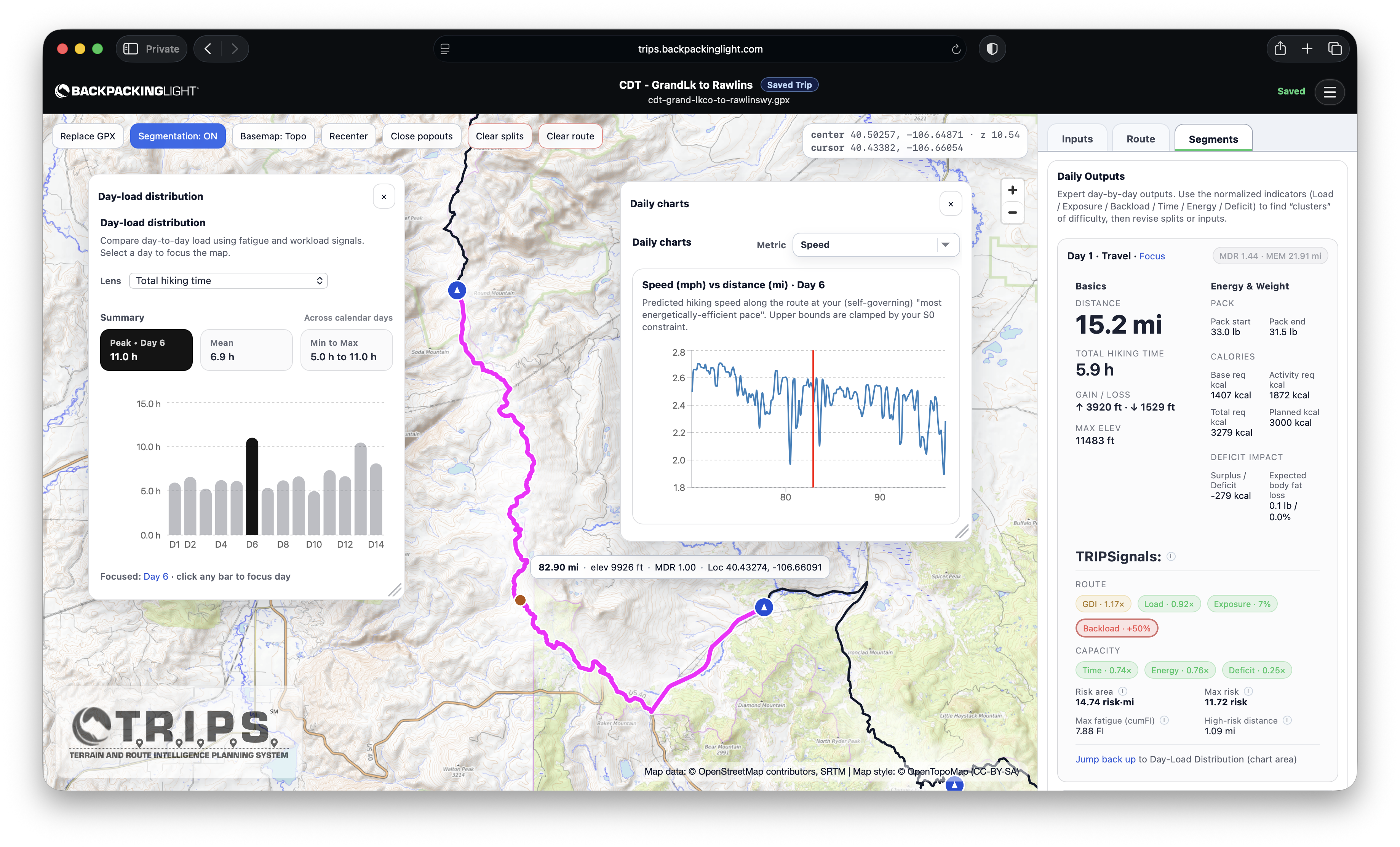
Zoom in on the standout day and inspect exactly where terrain, time, or fatigue make the itinerary break down.
Use this view to answer: Which day is the problem, and what should I change first?
Adjust day structure, compare versions, and save stronger drafts once the plan starts to make sense.
Use this view to answer: What should I move, compare, or save before I commit?
Use Cases
TRIPS is useful for quick first-pass planning, turning a route into an itinerary, pressure-testing a hard plan, or comparing realistic alternatives before you commit.
Start in Basic mode to sketch a route, split it into days, and get a quick reality check before investing in deeper analysis.
Turn a route idea into a more realistic day-by-day itinerary instead of relying on rough mileage and elevation totals.
Compare day structures, campsites, and resupply assumptions before a long route gets locked in too early.
Pressure-test aggressive pacing and hard days before terrain, fatigue, altitude, or load start pushing the plan apart.
Use Basic mode for quick what-if checks, or Pro mode for deeper comparisons of camps, pacing, sleep, food, and pack assumptions.
Build more repeatable itineraries, compare alternate day structures, and spot weak days before the trip starts.
Compare campsite layouts, assumptions, and pacing strategies without rebuilding the route from scratch every time.
Optional Calibration
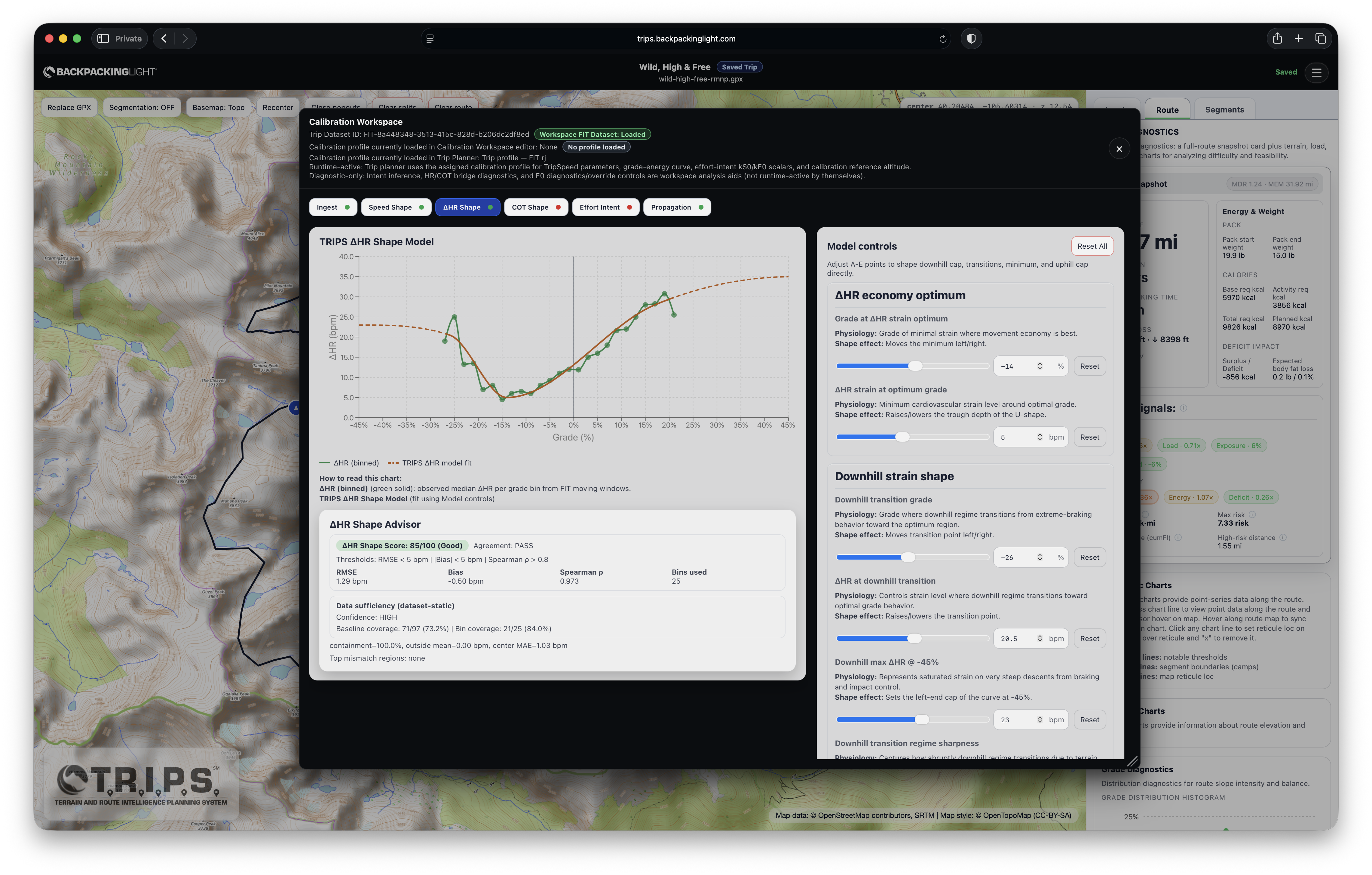
Most people should begin in Basic mode or with the core planner using honest manual inputs. If you have enough representative wearable history and want a closer model fit, the calibration workspace is there when you are ready.
Ready To Plan With TRIPS?
Import the route, split it into days, find the weak spots, and compare alternatives before the trip begins.
Before You Open TRIPS
Quick answers about calibration, access, device support, and what TRIPS does.
TRIPS is designed to turn a route into a practical day-by-day plan. It helps you inspect camps, day structure, terrain difficulty, pacing assumptions, and how factors like food, sleep, pack weight, and altitude change the itinerary.
No. Most people should start with the planner and honest manual inputs. Calibration is optional, and it is most useful only when you have enough representative historical wearables data (e.g., FIT files) to improve personalization.
Yes. TRIPS supports both Basic and Pro workflows. Basic mode is designed for faster initial planning, simpler interfaces, and quick scenario checks. Pro mode is there when you want deeper diagnostics, modeling controls, and calibration tools.
Yes. TRIPS includes a file manager for cloud storage of all your trip plans and calibration profiles. TRIPS also supports working drafts so you can explore a route before deciding whether to save it.
No. TRIPS is currently optimized for desktop and laptop use, because the planner depends on maps, day splits, diagnostics, and side-by-side inspection that need more screen space.
Access depends on your Backpacking Light Membership level and account status. To access TRIPS for free as part of your membership, you must have an active Unlimited Membership (Lifetime or Annual). Learn more about Membership here. If you are an active Unlimited Member, you can access TRIPS through the link in your Membership Dashboard here.
No. TRIPS is a planning tool for improving judgment, comparing scenarios, and spotting weak points in a route plan. It does not replace field judgment, weather checks, routefinding, or day-of decision-making.
Questions, bug reports, and feedback are handled through the Backpacking Light TRIPS forums here. That is also the best place to ask for help if something about GPX upload, trip management, or calibration does not look right.
 © Beartooth Media Group Inc.
 Loading...