


















Topic
Become a member to post in the forums.
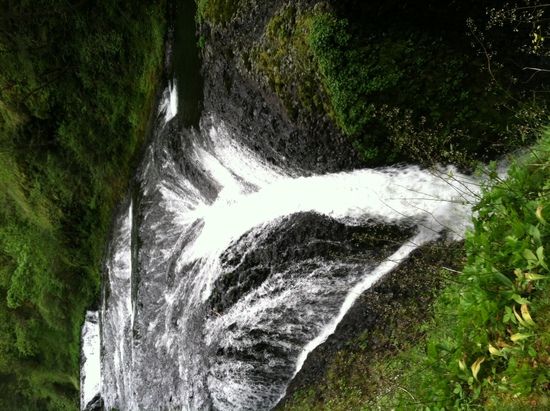
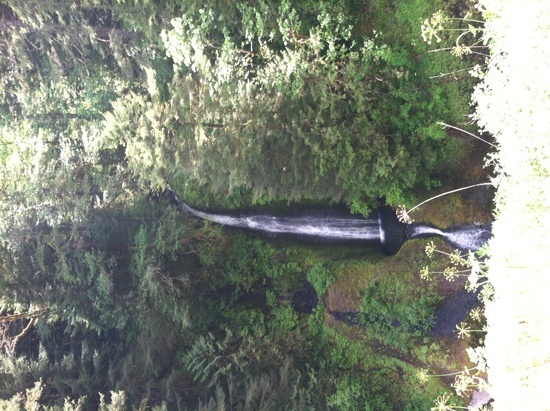
how do I get these to all rotate properly?
I will take a wild guess that you shot these using an Apple iPhone 4.
It has been my experience that Apple products put an orientation tag on the image file that is a bit inconsistent. If you use only Apple products, then it might look normal. If you use other industry standard products, the orientation tag could be mis-read. As an example, in one part of a Windows OS, the image shows with a bad orientation. In another part, the image shows normally. I am not aware of any non-Apple cameras that have this problem.
If you have a computer with any image editing software, you should be able to open the file, set the orientation tag correctly, and then it will show consistently everywhere… I think.
–B.G.–
yep, iPhone 4.
It's late. trip report can wait til tomorrow.

n/a
Hi Katherine
Your camera thinks it knows what it is doing, and will save your image in a certain format. Yes, that is JPG, but the file has an orientation. It may also have tags which say which way is horizontal. Some image processing SW uses that information correctly, while some does not.
It is very easy to rotate a picture. There are an infinity of 'image processing' packages on the web, many of them good and many of them free. However, if you are running Windows, you should have MS Paint already there. This will work.
Open the image with Paint
Click on the Image menu item
Click on Flip/Rotate
Click on Rotate by an angle
90 degrees will rotate to the right, 180 will rotate upside down, and 270 degrees will effectively rotate to the left.
Now SAVE FILE! You might want to use a different file name for this. If you started with AAA.jpg, save as AAA90.jpg for instance.
Then check, by opening the new image file.
Most complex image processing packages can do more, with packages like Gimp and Photoshop allowing utter mayhem. But they need a LOT more training.
Cheers
Become a member to post in the forums.
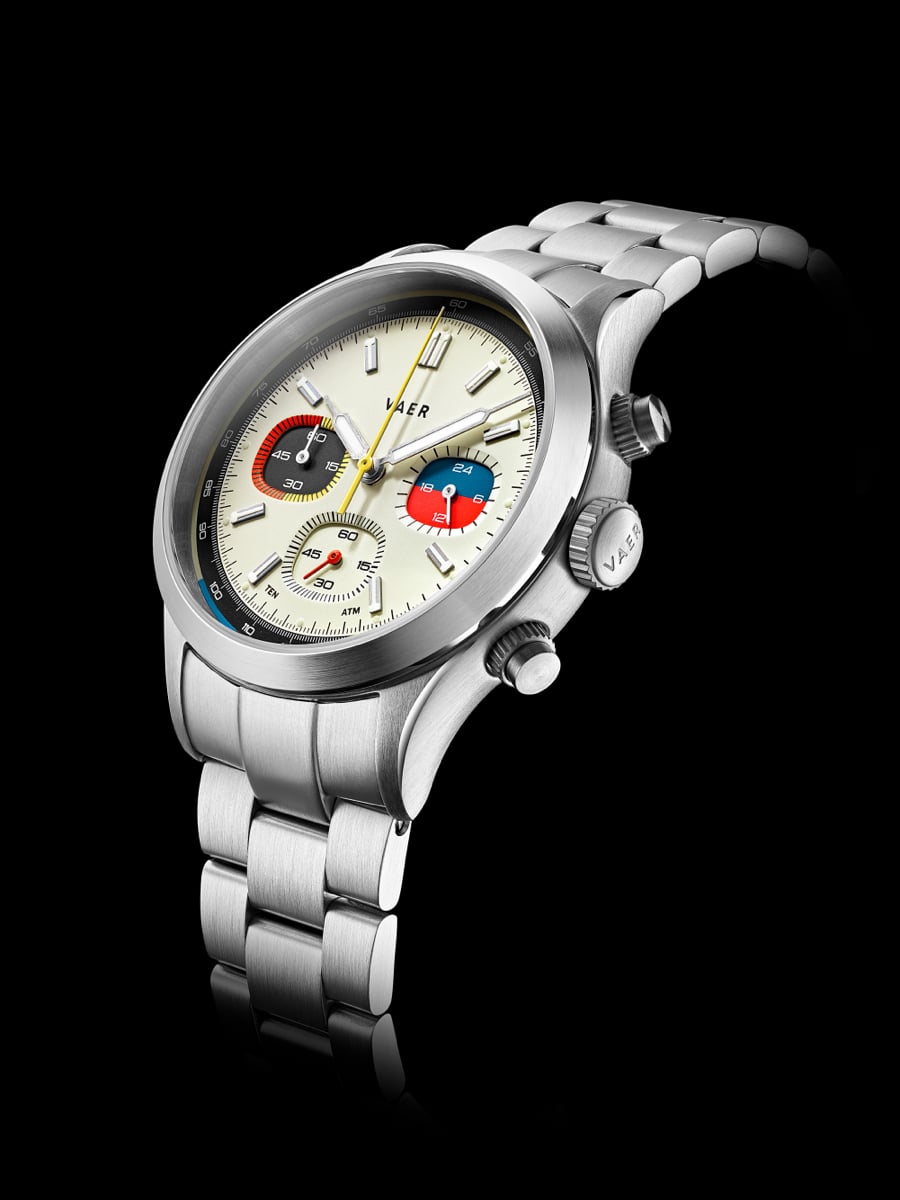 Retro Racing Character, Built for Everyday WearDrawing on the colorful racing chronographs of the 1960s and '70s, the RS1 Rally pairs vintage motorsport style with the durability expected from a Vaer. Its 40mm case houses a Japanese VK63 meca-quartz chronograph movement, complete with stopwatch functionality and an integrated tachymeter scale, while contrasting subdials give the watch its distinctive retro character. Sapphire crystal, 100 meters of water resistance, a screwdown crown, and strong BGW9 lume make it far more than a style piece. At under $300, it's an easy pick for the car enthusiast or chronograph fan.
 © Beartooth Media Group Inc.
 Loading...